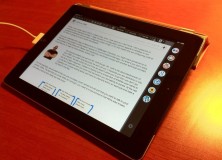

Oh, I remember the days where I could just sit down in front of the computer and spend a good amount of time hammering out a blog post. Those were the days that I had a big boat anchor Dell desktop machine. How things have changed.
Lately, most of my work is done in small time periods. I’m waiting for someone to show up somewhere or something to start, so I whip out the iPad and type away until whatever it is I am waiting for actually happens. Of course sometimes this means that it takes several days to write one short post, but such is life.
Writing on the iPad has been kind of a blessing and a curse: it’s very convenient to do, but you don’t have the most robust tools available to you. If you want to upload an image into WordPress, you pretty much have to go to a computer and hop on the web interface. Embed a Youtube video? Go to the computer. Do some paragraph formatting? Either go to a computer or whip out and dust off your html programming skills. The point is that the WordPress app is great for entering text for your website, but thats about it.
About a week ago I ran across an article from a journalist talking about how he uses his iPad for 80% of his work and his regular laptop for only 20%. I’m always interested in finding ways that I can use this device for more so I gave it a read through. The key takeaway for me was a piece of software called Blogsy. I won’t say that Blogsy is the holy grail that will let you do anything that you want in a WordPress blog, but it sure adds a lot of the functionality that I use on a regular basis. If you guessed that I am going to go through some of the features in Blogsy now, you’re right! How do you know me so well?
Editor
The first noticeable thing about Blogsy is the visual editor. Where the WordPress app has you largely dealing with HTML code (some of which can be done through buttons that put the code on screen for you) Blogsy has a clean visual editor. When you click to make something bold, it appears as bold, not with tags around it to be bold. When you want something to be centered it shows up as centered. You can also very easily change the font size and font family with simple drop downs.
New in the current version of Blogsy are buttons that will allow you to undo/redo actions. Been working on a long section only to accidentally delete it when you meant to select something else? Just undo it and save yourself some headaches!
Images
Natively, Blogsy has hooks built in for adding images from Flickr, Picasa, the web and also uploading images from your iPad to your WordPress site. That last one is a huge one for me. The images like the one on the top of this post are usually accessible to me on my iPad and getting them to where I can use them without having to go to a computer is a BIG deal for me.
Adding an image is as simple as selecting the appropriate image service, finding the image you want and then dragging to place it where you want it on the visual editor. Once it is in the post, you have options to re-size it, make it link somewhere else or change it’s alignment and text wrap characteristics.
If there were one thing that made the Blogsy purchase a worthwhile one for me, it would be this feature.
Video
Right now, the video service that they will allow you to natively embed is YouTube. As this is the largest video sharing site (to my knowledge) this shouldn’t be that big of an issue, but they are polling their user community to see what services they want connectors for in the coming releases. Video embed works just like the pictures. Once you have YouTube connected to you account, you simply select your video from the pullout bar and drop it into your post.
Drawbacks
Ok, this is a fairly new product and no new product is without it’s share of drawbacks. I have only been using Blogsy for a couple of days but there are a couple of drawbacks that stick out in my mind. Here they are:
- You can’t set a feature image within the app. Blogsy has acknowledged this and says that it is a limitation of the actual WordPress API and that they can’t create this functionality because of it. All of my posts on this site have a feature image set or this would not be that big of a deal for me.
- While good, formatting still has a few issues. For instance, I was writing a post on samplefive.com earlier in Blogsy and noticed that if I select the preformatted text type, every new line it re-starts the preformatted text function. This makes blocks of code come out with spaces in between them where there shouldn’t be anything and you are left going into the HTML editor to manually fix it.
- Once you position an image within the body of your post it doesn’t look like you can move it up or down in your post. This isn’t a hug deal, but it is kind of annoying if you accidentally lift your finger before you are ready to place it.
- I wish it had connectivity to Vimeo, but hopefully this will be in a future release.
All in all though, if you are looking for a solid WordPress editor for your iPad, I would recommend Blogsy. It is in the app store and runs $5.99 – correction $4.99. You can also check out their web page where they have several video demos of their product: http://blogsyapp.com/