
There was a time, not long ago, when my wife wondered if I got paid by Evernote for plugging their product. Anytime there was an issue with tracking receipts or keeping kids school work without cluttering up the house or planning a vacation, the question would come out, “Have you heard of Evernote?” Recently, I have toned down the need for telling people about this product every time I can, not because I use it any less. The reason is that I think my wife got tired of the anytime anywhere Evernote Commercial.
 Imagine my surprise, when earlier today Kristen sends me a text, “Hey, didn’t you do some kind of tutorial/tip sheet on Evernote?” Apparently she had a friend who had started using it (through no effort of my own) and they are looking on ways to better use Evernote and maximize it’s potential.
I didn’t actually have anything, though I had been putting off writing up about how I use Evernote from quite sometime. This question was just what I needed to kick me into gear to write this post about all the useful things I do with the software. If you don’t find what you’re looking for in this, there are plenty of other articles that you can find through a quick Google search, but these are the ways that I use it and can see other people potentially using it. If you use it in some way that I haven’t thought of, please comment on this post and let me know, I’d love to hear about other ways to use this awesome program.
Wait, Wait, What Are You Talking About?
As I often do when I’m writing something, I got started without really paying attention to who might read this. If you have never heard of Evernote, this is the section for you. The simplest description of Evernote would have to be a pervasive note taking application. But even that description would be doing this software a disservice. Let’s try this another way.
Evernote is a note taking app that has software available for pretty much every computing platform. Mac, Windows, iPhone, Android, I think they may even have a Blackberry app, but don’t quote me on that. If you are running on some OS that is not supported (OS/2 Anyone?) then you can still access and create notes through a modern web browser.
But it’s not just note taking! You can put pictures in there and if the picture has text in it, Evernote will make that text searchable. You can also drop PDF files in there and save them for reading later, and since it is a pervasive application, you can open the PDF file on your iPhone that you saved to Evernote through your computer earlier.
The last “feature” that I’ll talk about with Evernote is where the data is stored. Everything you enter a note into is stored on your computer (if you enter it on a computer) and also on Evernote’s servers “in the cloud”. That way, there is a backup even if something happens to your computer. All that I have mentioned above is through a free app. There are some features that you can get by paying a small amount per year and I will get into some of those features a little later. Pretty cool stuff all in all. Ok, so now that we’ve gotten the general overview of a slice of what this software will do, let’s start talking about how I use it.
Customer Notes
The one item that I do in Evernote most often is also the most obvious. I take notes. When I got to a customer site to have a meeting it’s nice to be able to take notes in this. I have a notebook stack for Accounts. A notebook stack is basically a folder for all of your notebooks. You create a stack by dragging one notebook on top of the other and then naming the new stack. Every time I go to a new client, I just create a notebook in that stack for that client. That way, all of my notes for Client XYZ are easily found in one location, plus that location is easy to search.
You can’t currently draw in Evernote, that is the one thing that I wish was in there, especially on the iPad version where I take most of my notes at customer sites. However, you can still attach images to Evernote notes. So if I need to create a drawing of something, I can do that in another app and then bring that image into Evernote. Not the best workflow, but it works drawings into a process that I am already used to for all of my other note taking.
The last thing I will say about customer notes with Evernote. I go to a lot of meetings where things are put up on a whiteboard for everyone to see. Great for the meeting, but not so great for when you leave the room. I just use evernote to take a picture of the whiteboard before it gets erased and the data is now in the same note that all of my other notes for that meeting are in.
Save the School Work
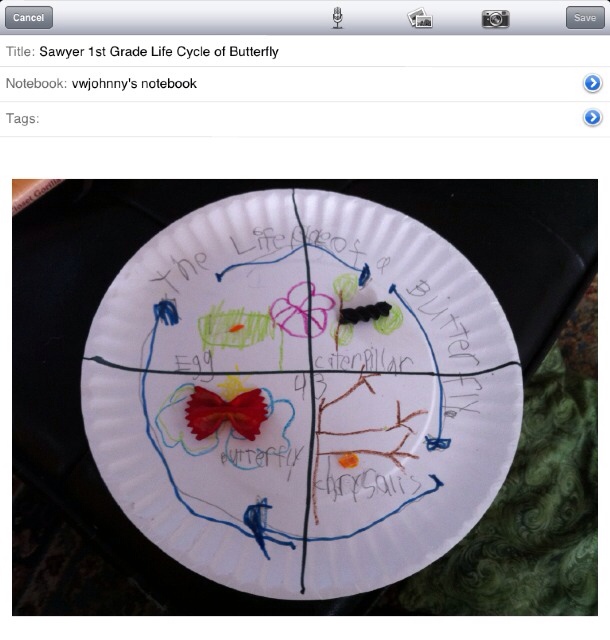
We have two children in Elementary school and the problem is that even if we had all the space in the world to save every piece of schoolwork that came home with them, some of it is just to fragile and would fall apart. Enter Evernote. The picture that you are seeing is my view of a picture note from one of Sawyer’s school projects, the life cycle of a butterfly.
The problem was that the life cycle was made with gluing pieces of pasta to a paper plate with crayon drawing around it. While the crayon would stay for awhile, the pasta was pretty close to falling off when he came home. I just snapped a picture of it within the Evernote app on my phone (I could have taken the picture separately and added it to a note, but this was easier), saved it and now it is documented for posterity and I don’t have to worry about noodles falling off of this picture.
I’ve also used it to scan in things like report cards that are easy enough to lose over a lifetime. Scan them into Evernote and it’s a backup to keep all of that stuff safe.
Cook That!
Keeping recipes in Evernote is one of things that I have done a little bit, but that I would like to do more. The power of doing recipes in here is not just having the recipe. People have done that with recipe books for decades, if not centuries. No, the power of Evernote with recipes lies in search. Let’s say that you have come into a massive supply of Mahi Mahi. Or maybe that’s the protein in your fridge that’s about to expire. Just do a quick search for Mahi Mahi (you can also tag notes, but I have never really relied on them as much as search and notebook stacks) and now you know what you can cook.
Oh, and if you’re at your mom’s and don’t have the time to take down a recipe that you’ve always wanted of hers? Just take a picture. Again, Evernote will make it searchable so that you can do the same thing as I mentioned with searching for Mahi Mahi.
From Here to There
Whether it’s planning a vacation or travelling for work, there is a lot of stuff that you need to remember. There is also potentially a lot of stuff that you need to take with you. Flight schedules, hotel reservations, rental car information, maybe that dinner reservation you made, it all adds up to a lot of information. Rather than keeping all of that paper along for the ride I just forward the confirmation e-mails to Evernote. When you get the program they set up a special e-mail address for you that looks like a bunch of weird characters. By sending e-mails to that address it will automatically convert them into new notes. There is a way that you can control what notebook it goes into by adding text to the subject line, but I usually just send the e-mail and then sort it out later.
Another note on travelling. When I travel, I often have to park at the airport. I’ll document what my parking space was so that if I happen to lose my card, I still have it accessible on my phone.
Now, some of you may be thinking about what happens if you land and have no Internet service. With your phone, the files are not by default stored on your local phone, so if your service provider has spotty coverage where you are going, then it could be a problem getting to your travel documents. Now, if you are really concerned to this, there is a solution. Remember how I said a little earlier that the application was free but there were some features you could get additionally if you paid a yearly amount? If you go to the premium level of Evernote (the only level other than free) it’ll cost you a little less than $4 a month (if paid a year in advance) and one of the features that gives you is offline notebooks. Offline notebooks allow you to select a notebook from your phone and tell Evernote that you always want the notes in that notebook stored locally on your phone. As long as you have synchronized recently, it won’t matter that you have no network connection, your notes will be there for you. This was one of the main features that made me decided to go ahead and purchase the premium subscription. It and several other things make the money more than worthwhile.
Receipts, Receipts and More Receipts
I am terrible at keeping track of my expenses and the receipts that go with them. For one thing, I used to have to keep ahold of all of my receipts and then get home and scan them in and because of the labor involved I would just end up eating the expense. I know, that’s just kind of dumb on my part, but I did it. When I have an expense with Evernote, I just take a snapshot with my phone and put it on a note in the notebook for that customer or trip. I still keep the paper copy in case my camera didn’t capture enough detail, but I haven’t had to come home and scan in receipts for a very long time.
I do the same thing with charitable receipts. This is one area where I actually do use the tags functionality. For every tax receipt I put in, I usually associate a tag like “tax-2011” and then when it comes time to fill out the tax forms, I just have to filter based upon that tag and all my receipts are ready to go.
Sharing
Sometimes the notes that you’re working on aren’t just for you to see. Sometimes you need a friend, group of friends or anyone that might be interested to see what you’re writing down. Here’s a perfect example:
You’ve spent all of this time getting your trip together with your wife, and you’ve been using Evernote to document everything for that trip. Now your parents are coming to stay and watch the kids while you are on your week-long vacation! That’s great, but how are you going to communicate that travel information to them so that they know when you are going to be where in case there is an emergency they need to contact you about? Yes, you could print out new documents, but what if your plans change mid-trip? Just share the notebook that your travel plans are in and all they have to do is click a link in an e-mail and they have access to all the notes in that folder. The only problem is that you can’t restrict them from viewing certain notes in a folder, so move anything you don’t want them to see to another folder before you share it.
If you have a premium account, you can also allow the people that you share notebooks with to edit and create content in that notebook. So, if you’re trying to plan a vacation (I keep going back to vacation, but this could easily be used for work projects or a team of people working on a research project or anything that needs to share notes between multiple people) and have multiple parties that are planning different parts you can give yourself a central repository for all of that information rather than tracking down that e-mail from four weeks ago.
You can even share notebooks to a larger audience for a reference like this one that I haven’t updated in awhile: https://www.evernote.com/pub/vwjohnny/ciscouctutorials As you can see shared notebooks can be used for a wide variety of purposes.
Scraping
Evernote has published plug-ins for several different desktop web browsers that give you a button that you can click when you are viewing a web page. It will scrape the content off of that page and into a note in Evernote for you to read or reference later. While it doesn’t always get the formatting just right, it’s a great way to preserve content that you may not be able to find later or may not even be in that location later. The note that is created is not updated when the original content is updated, but I think that’s a good thing in case the original publication deletes it for some reason.
Knowledge Base
Ok, the last thing I will talk about with regard to how I use Evernote is a knowledge base. A couple of years ago, I read a book by some tech guy. I don’t remember who it was or even what the book was, but the thing that stuck in my head was that he said he always carried around a little notebook that he used to write down little factoids or how-tos so that if there was something that he did or figured out again that would be hard to find that knowledge again in the future he had it documented. I thought that was all great, but a little unweildy. What happens when you have a full notebook and need to look for one item?
By using Evernote for my knowledge base notebook, not only can I access it anywhere and not worry about leaving my notebook behind somewhere (though leaving my phone somewhere would not be good, I would still be able to access all the data in Evernote) but I can use the Evernote search to find the exact piece of information that I’m looking for.
Wrap It Up
This posting has gone quite a bit longer than I intended and there is honestly still more useful things that I could add. The bottom line is this: if you need to remember something, Evernote is great. If you get creative, there are a lot of ways to utilize this application to solve a lot of life’s little memory problems.
I’m the friend! Wow! This is way more than I had ever hoped for when posting. THANKS!!!!! LOVE your useful explanations!!!
I have heard of two apps….one snitch, I think, lets you draw on the ipad for evernote.
And I am trying out some pen that records what I write on paper (cause I still like to brainstorm on paper). Let you know how it works.
Hey Stephanie, I’m glad I could help out! Skitch is one I have heard of but not used a whole lot. I do know that the folks over at Evernote recently purchased them and have been adding more functionality between the two. I have been meaning to give it a look, but if you try it out before I do, let me know what you think!